See it before it lands
Amber recognises the format, shows every snippet it found, marks anything already in your library, and lets you switch any of them off before importing.
Import snippets
Your snippets live in a Mac launcher, and your iPhone cannot reach them. Amber imports them from Raycast, Alfred, Apple Text Replacements, a TextExpander CSV, or any CSV, JSON, Markdown or plain-text list, and keeps them on every Apple device you own.
Download for MacFree on the Mac App Store · macOS 13 or later · Apple silicon and Intel
Or install the direct download with Homebrew:
brew install --cask chinmay-92/tap/amberDownload for iPhone and iPadFree on the App Store · iOS 16 or later
Download for iPhone and iPadFree on the App Store · iOS 16 or later
On a Mac you can also install it with Homebrew:
brew install --cask chinmay-92/tap/amber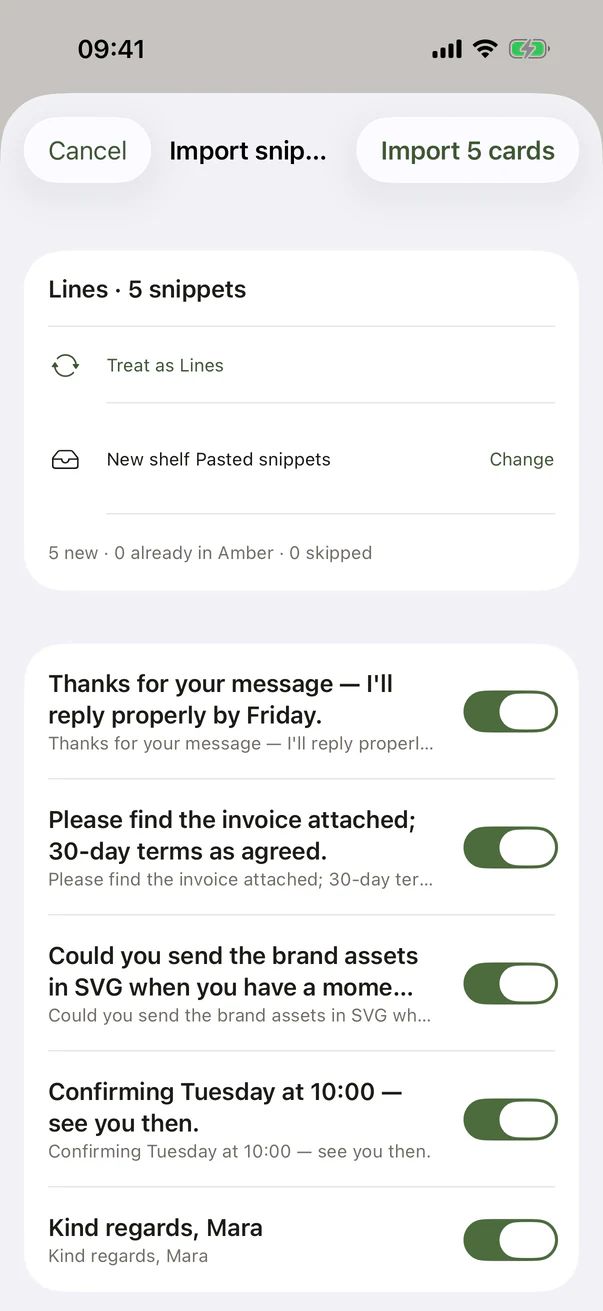
Amber recognises the format, shows every snippet it found, marks anything already in your library, and lets you switch any of them off before importing.
Raycast and Alfred {placeholders} and TextExpander fill-in fields become Amber blanks, so a template still asks for what it needs.
Copy an export and paste it, or open the file. On a Mac, Import Snippets… is in the File menu.
Once imported, your snippets sync through your own iCloud to iPhone, iPad and Mac, with widgets, Shortcuts and Spotlight on each.